
Spinning Up Local LLMs
1. Introduction
I have an old desktop with an NVIDIA RTX 2070 SUPER (8GB VRAM) sitting around, quietly collecting dust and judging me. So naturally, I decided to give it a job: run a local LLM server with llama.cpp, then wire it up to an AI coding agent.
No cloud tokens, no monthly bill anxiety, no sending prompts halfway across the planet. Just one old GPU, a quantized model, and a little bit of stubbornness.
2. Pre-requisites
Before building llama.cpp, install the GPU toolkit for your card:
- Install CUDA for NVIDIA cards:
- Install ROCm for AMD cards:
3. llama.cpp Server Setup
First, grab the llama.cpp source:
$ git clone https://github.com/ggml-org/llama.cpp
Next, configure the CMake build depending on your graphics card:
$ cd llama.cpp

# For NVIDIA Cards
$ cmake -B build -DGGML_CUDA=ON -DCMAKE_CUDA_COMPILER=/usr/local/cuda-13.0/bin/nvcc

# For AMD Cards
$ HIPCXX="$(hipconfig -l)/clang" HIP_PATH="$(hipconfig -R)" \
  cmake -S . -B build -DGGML_HIP=ON -DCMAKE_BUILD_TYPE=Release
Once you are done configuring, build it:
$ cmake --build build --config Release
Before choosing a model, check how much VRAM you have available:
# For NVIDIA Cards
$ nvidia-smi --query-gpu=memory.total --format=csv,noheader,nounits

# For AMD Cards
$ rocm-smi --showmeminfo vram
Now for the fun part: choosing a model that will not immediately bully your hardware into swapping itself to death.
I went with unsloth/Qwen3.6-35B-A3B-GGUF. It is a Mixture-of-Experts model: 35B total parameters, but only around 3B active per token. In other words, it looks huge on paper, but it is not trying to lift the entire gym on every rep.
My rough fit check is:
VRAM + RAM  >=  GGUF file size + 2 GB  (minimum, tight)
VRAM + RAM  >=  GGUF file size + 4 GB  (comfortable, allows larger context)
With 8GB VRAM and 16GB RAM, I try to stay around the ~20GB mark for the GGUF file. That makes the IQ4_NL_XL quant a reasonable target for this machine.
Download the model into the models directory:
$ wget -P models https://huggingface.co/unsloth/Qwen3.6-35B-A3B-GGUF/resolve/main/Qwen3.6-35B-A3B-UD-IQ4_NL_XL.gguf
-c, llama.cpp defaults to a 4096-token context window. That is fine for tiny chats, but agents chew through context like snacks. Set a larger value, but do not exceed the model’s trained context length. For this Qwen3.6 model, that is 262144.Start the server:
$ ./build/bin/llama-server --host $HOST_IP --port $PORT -m models/Qwen3.6-35B-A3B-UD-IQ4_NL_XL.gguf -c 100000
At this point, the model is alive. llama.cpp also ships with a built-in chat UI at http://$HOST_IP:$PORT, which is great for a quick sanity check:
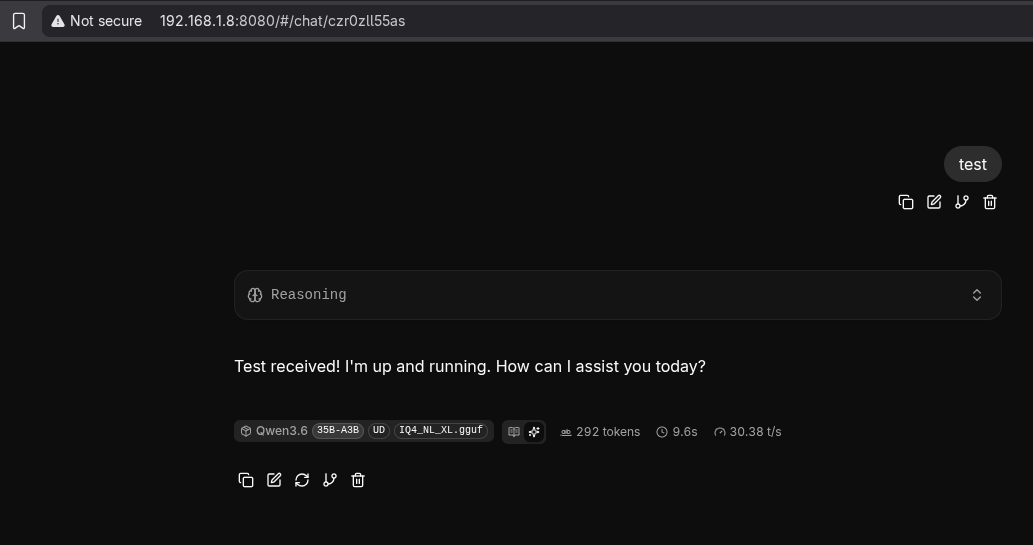
Testing a Prompt via the Built-in Web UI
The web UI is neat, but let us be honest: we did not wake up today just to build another chatbot. We want agents. We want tools, and we want the GPU to feel useful.
For that, start the server with API-key authentication:
# Randomly generate an API key with 'sk-' prefix
$ echo sk-$(openssl rand -hex 32)
sk-eaa43c9cbeccce851f82ab354faaaf2e423b76eef82d2e4f03e8b7fe324e8446

# Running the server with the API key for authentication
$ ./build/bin/llama-server --host $HOST_IP --port $PORT -m models/Qwen3.6-35B-A3B-UD-IQ4_NL_XL.gguf -c 100000 --api-key "sk-eaa43c9cbeccce851f82ab354faaaf2e423b76eef82d2e4f03e8b7fe324e8446"
--api-key "${USER1_API_KEY},${USER2_API_KEY}"4. OpenCode Agents Setup
For the agent side, I have recently taken a liking to OpenCode. It is an open-source coding agent that runs directly in the terminal, which is exactly the kind of chaos I enjoy.
Install it on the client machine:
$ curl -fsSL https://opencode.ai/install | bash

# Reinitialize PATH environment variable
$ source ~/.bashrc
Now point OpenCode at the llama.cpp server. Edit ~/.config/opencode/opencode.json:
{
  "$schema": "https://opencode.ai/config.json",
  "provider": {
    "local-llm": {
      "npm": "@ai-sdk/openai-compatible",
      "name": "Local LLM (llama.cpp)",
      "options": {
        // Replace $HOST_IP and $PORT
        "baseURL": "http://$HOST_IP:$PORT/v1"
      },
      "models": {
        "Qwen3.6-35B-A3B-UD-IQ4_NL_XL.gguf": {
          "name": "Qwen3.6 35B A3B (UD-IQ4-NL-XL)"
        }
      }
    }
  }
}
npm field matters. llama.cpp exposes an OpenAI-compatible API, so OpenCode needs @ai-sdk/openai-compatible. Also, the model key must match what /v1/models returns. The .gguf suffix counts.Next, add the API key to ~/.local/share/opencode/auth.json:
{
  "local-llm": {
    "type": "api",
    "key": "sk-eaa43c9cbeccce851f82ab354faaaf2e423b76eef82d2e4f03e8b7fe324e8446"
  }
}
With both files in place, unleash the agent:
$ opencode
If everything is wired up correctly, OpenCode should now talk to your local model instead of running off to the cloud:
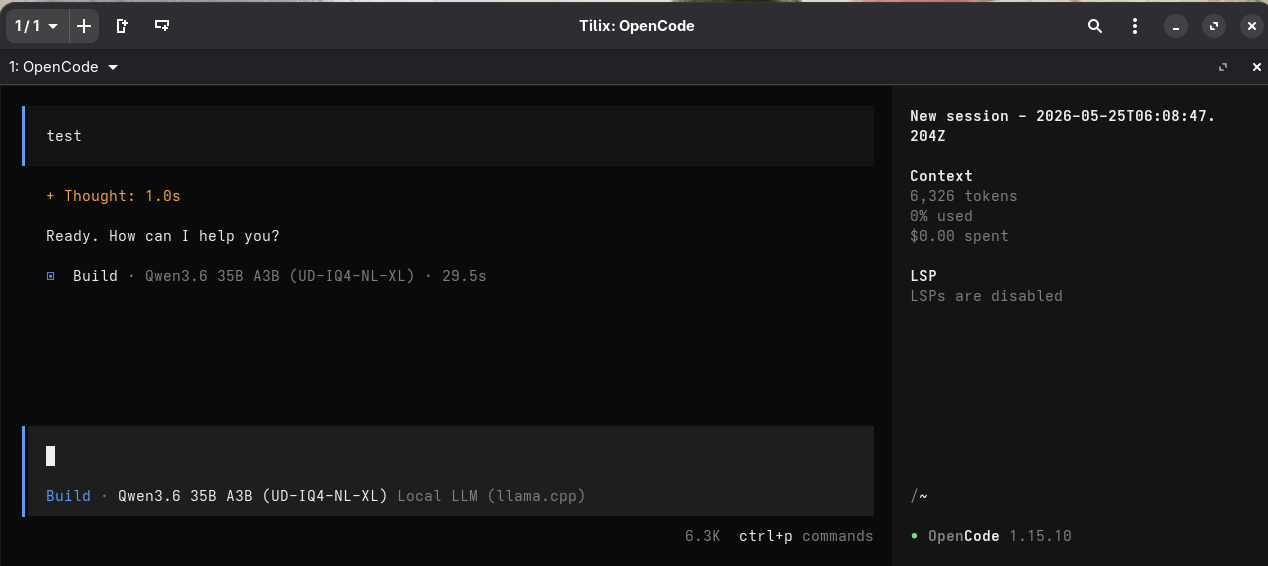
OpenCode Connected to the Local LLM
5. Conclusion
That is the whole setup: one dusty desktop, llama.cpp, a GGUF model, and OpenCode pretending my RTX 2070 SUPER is still young and full of dreams.
llama.cpp handles inference and exposes the OpenAI-compatible API. OpenCode connects to it like any other provider. No per-token bill, no external API dependency, and no mystery box between your prompt and your model.
Will it beat a frontier cloud model? Obviously not. Will it run locally, privately, and cheaply on hardware you already own? Absolutely. Sometimes that is the entire point.