Getting Root Shell Mikrotik RouterOS
1. Introduction
I was digging through some of the stuff I did previously several years ago and I thought that this technique may come in handy one day for researchers doing Vulnerability Research on Mikrotik RouterOS systems.
For those that have already done their hands-on spinning up a Mikrotik RouterOS with the default installation on a VM, you will quickly realize that you are restricted to only using the MikroTik Command Line Interface. In other words, no bash 🙁.
This walkthrough will show a step-by-step process to break out of “jail”.
2. Walkthrough
Subsection 2.1 shows how to set up the VM.
Subsections 2.2 to 2.4 shows how the jailbreak was discovered.
If you are only interested in the steps to jailbreak, please follow from subsections 2.5 onwards. Do also note that the walkthrough is based on a older version of Mikrotik RouterOS - 6.42.11.
2.1 Getting Started
Firstly, we need to get the ISO file of interest from the official mikrotik archives.
Spin up a VM using any hypervisor of your choosing. I would personally recommend using VMWare as it is now free for personal use. However, if you are doing research on a commercial network, please make sure you have a commercial license activated if not you may get yourself into hot water.
To start the installation of the Mikrotik RouterOS, create a new virtual machine from the ISO file and when selecting a guest operating system, choose Other –> Other.
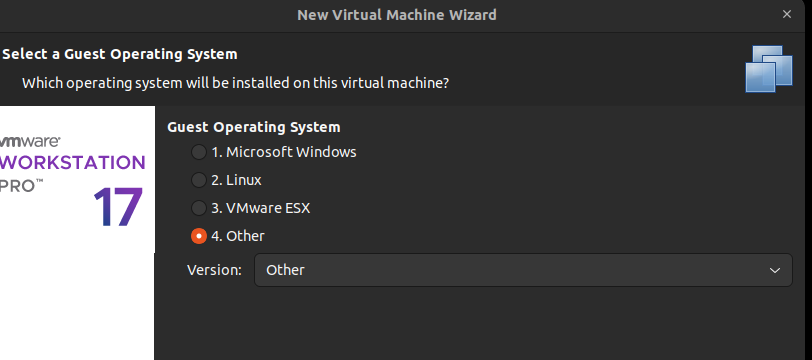
Follow the instructions of the installation, and on success you will be prompted to login. By default the administrator username is ‘admin’ with no password.
If everything is okay up till this point, you will be able to see the RouterOS CLI.
After logging in as admin, we need to assign an IP address to our VM. For this example, I have assigned 172.16.205.150/24 as my RouterOS IP. Please change the values according to your own setup.
[admin@MikroTik > /ip address add address=172.16.205.150/24 interface=ether1]
After wards, do a simple ping test from your host to see if it is reachable.
$ ping 172.16.205.150

PING 172.16.205.150 (172.16.205.150) 56(84) bytes of data.
64 bytes from 172.16.205.150: icmp_seq=1 ttl=64 time=37.5 ms
64 bytes from 172.16.205.150: icmp_seq=2 ttl=64 time=0.709 ms
64 bytes from 172.16.205.150: icmp_seq=3 ttl=64 time=0.391 ms
Test if FTP works as well.
$ ftp admin@172.16.205.150

Connected to 172.16.205.150.
220 MikroTik FTP server (MikroTik 6.42.11) ready
331 Password required for admin
Password:
230 User admin logged in
Remote system type is UNIX.
Using binary mode to transfer files.
ftp>
2.2 Getting system file (.npk) from ISO
On my ubuntu host, I used 7zip to extract the iso to get its corresponding .npk files
$ 7z x mikrotik-6.42.11.iso

# Output
7-Zip [64] 9.20  Copyright (c) 1999-2010 Igor Pavlov  2010-11-18
p7zip Version 9.20 (locale=en_US.UTF-8,Utf16=on,HugeFiles=on,4 CPUs)
Processing archive: mikrotik-6.42.11.iso
Extracting  advanced-tools-6.42.11.npk
Extracting  calea-6.42.11.npk
Extracting  defpacks
Extracting  dhcp-6.42.11.npk
Extracting  dude-6.42.11.npk
Extracting  gps-6.42.11.npk
...
The only file that we are interested in is the system .npk file.
2.3 Unpacking System .npk File
Using binwalk, we can extract the system file.
$ binwalk -e system-6.42.11.npk

# Output
DECIMAL       HEXADECIMAL     DESCRIPTION
--------------------------------------------------------------------
0             0x0             NPK firmware header, image size: 15616295, image name: "system", description: ""
4096          0x1000          Squashfs filesystem, little endian, version 4.0, compression:xz, size: 9818075 bytes, 1340 inodes, blocksize: 262144 bytes, created: 2018-12-21 09:18:10
9822304       0x95E060        ELF, 32-bit LSB executable, Intel 80386, version 1 (SYSV)
9842177       0x962E01        Unix path: /sys/devices/system/cpu
...
If everything runs successfully up to this point, a _system-$VERSION.npk.extracted directory will be created.
$ ls -la _system-6.42.11.npk.extracted/squashfs-root/

total 72
drwxr-xr-x 18 gerald gerald 4096 Mar 16 21:41 .
drwxrwxr-x  3 gerald gerald 4096 Mar 16 21:13 ..
drwxr-xr-x  2 gerald gerald 4096 Mar 16 21:13 bin
drwxr-xr-x  2 gerald gerald 4096 Dec 21  2018 boot
drwxr-xr-x  2 gerald gerald 4096 Dec 21  2018 dev
lrwxrwxrwx  1 gerald gerald    9 Mar 16 21:13 dude -> /dev/null
drwxr-xr-x  3 gerald gerald 4096 Mar 16 21:13 etc
drwxr-xr-x  2 gerald gerald 4096 Dec 21  2018 flash
drwxr-xr-x  3 gerald gerald 4096 Dec 21  2018 home
drwxr-xr-x  2 gerald gerald 4096 Dec 21  2018 initrd
drwxr-xr-x  4 gerald gerald 4096 Mar 16 21:13 lib
drwxr-xr-x  5 gerald gerald 4096 Mar 16 21:13 nova
drwxr-xr-x  3 gerald gerald 4096 Dec 21  2018 old
lrwxrwxrwx  1 gerald gerald    9 Mar 16 21:13 pckg -> /dev/null
drwxr-xr-x  2 gerald gerald 4096 Dec 21  2018 proc
drwxr-xr-x  2 gerald gerald 4096 Dec 21  2018 ram
lrwxrwxrwx  1 gerald gerald    9 Mar 16 21:13 rw -> /dev/null
drwxr-xr-x  2 gerald gerald 4096 Dec 21  2018 sbin
drwxr-xr-x  2 gerald gerald 4096 Dec 21  2018 sys
lrwxrwxrwx  1 gerald gerald    9 Mar 16 21:13 tmp -> /dev/null
2.4 Jailbreak Discovery
Looking through the files, you will stumble upon squashfs-root/etc/rc.d/run.d/S12defconf. A snippet of the bash script is shown in the listing below.
...
defcf=$(cat /rw/DEFCONF)
echo > /ram/defconf-params
if [ -f /nova/bin/flash ]; then
	/nova/bin/flash --fetch-defconf-params /ram/defconf-params
fi
(eval $(cat /ram/defconf-params) action=apply /bin/gosh $defcf;
cp $defcf $confirm; rm /rw/DEFCONF /ram/defconf-params) &
The above suggests that /rw/DEFCONF is a Go Shell script that will be executed on boot. It is also removed right after finishing execution. This means that if we can edit/add this script, we will be able to do whatever with want with the system.
2.5 Download busybox on host machine
BusyBox is a software suite that provides several Unix utilities in a single executable file. The idea is to upload the busybox executable via FTP and edit the /rw/DEFCONF to run our busybox.
$ curl https://www.busybox.net/downloads/binaries/1.26.2-defconfig-multiarch/busybox-i686 > busybox-i686
2.6 Upload the busybox via FTP
Again, we can login as admin via FTP with no password and we will upload our previously downloaded busybox executable binary.
ftp> put busybox-i686

local: busybox-i686 remote: busybox-i686
229 Entering Extended Passive Mode (|||55029|)
150 Opening BINARY mode data connection for '/busybox-i686'
100% |***********************************|   901 KiB   18.72 MiB/s    00:00 ETA
226 BINARY transfer complete
922936 bytes sent in 00:00 (17.56 MiB/s
After this, power off your virtual machine.
2.7 Boot from CentOS 6 ISO
The CentOS 6 ISO can be gotten from here
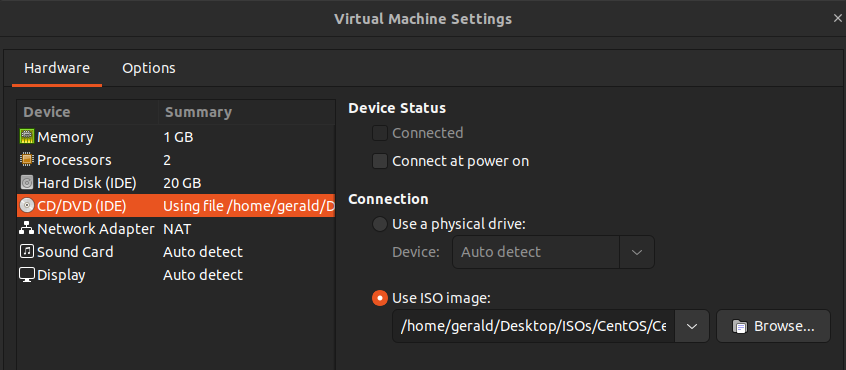
Switch out the ISO file attached to the CD/ROM hardware component of the VM.
We will then force the first boot to go through the bios by adding the following line in the .vmx file of our VM.
$ vim Mikrotik-6.42.11.vmx

# Add the following line any where
bios.forceSetupOnce = "TRUE"
Change the boot order by pushing the CD/ROM to the first. Press F10 to save and exit.
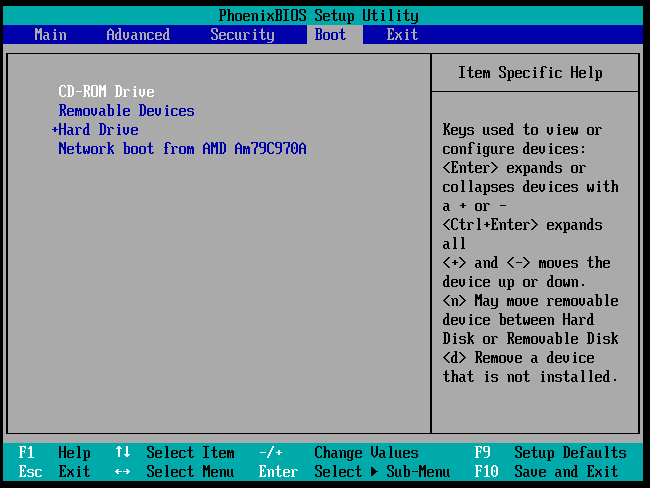
Upon exiting, you will see the CentOS 6 installer option. Choose the Boot option.

Once inside CentOS 6, Click on the top left Applications –> System Tools –> Terminal. Run the following commands to mount the routeros sysroot.
[centos@livecd centoslive]$ sudo su
[root@livecd centoslive]$ mkdir /mnt/routeros-sysroot
[root@livecd centoslive]$ mount /dev/sda2 /mnt/routeros-sysroot
# Create a new DEFCONF file that runs busy box
[root@livecd centoslive]$ echo "ok; /rw/disk/busybox-i686 telnetd -l /bin/sh -p 1270;" > /mnt/routeros-sysroot/rw/DEFCONF

# Ensure that busybox has executable permission
[root@livecd centoslive]$ chmod +x /mnt/routeros-sysroot/rw/disk/busybox-i686
2.8 Getting Root Shell
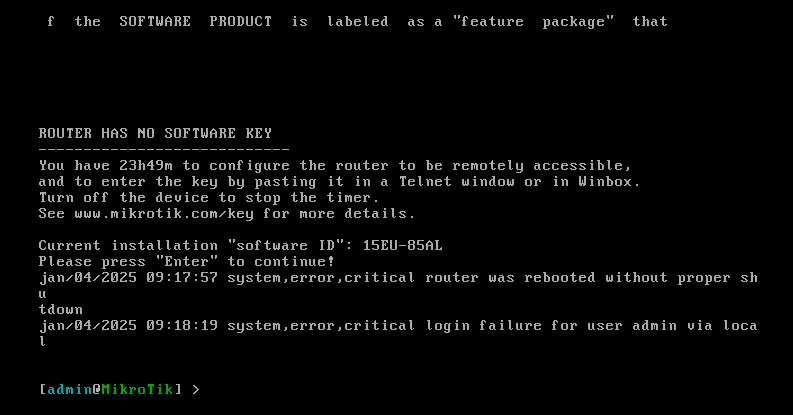
Once done, shutdown the VM, edit the hardware settings –> CD/DVD (IDE) and uncheck Connect at power on.
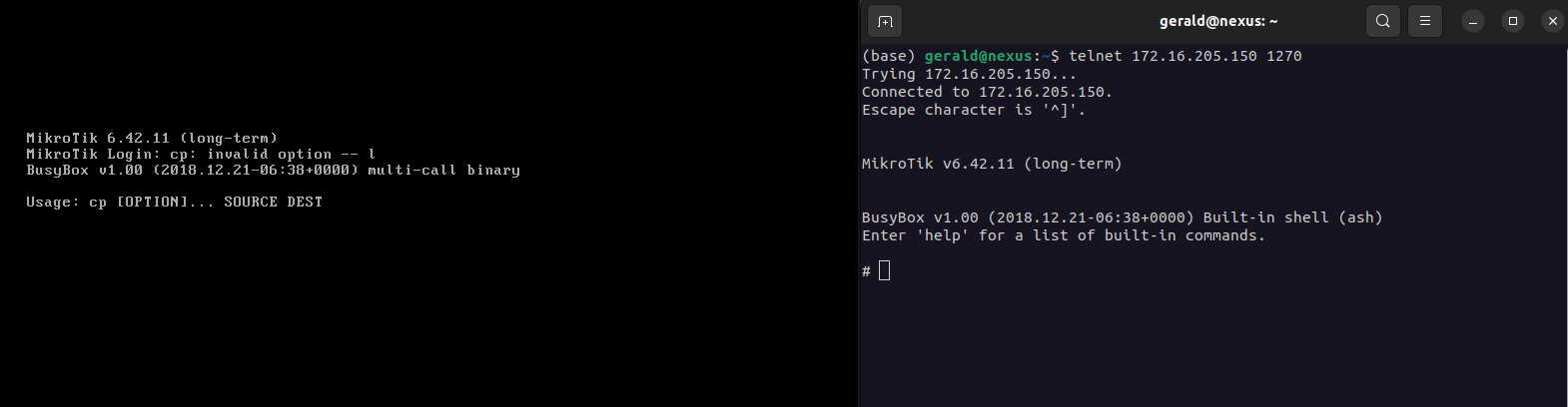
Upon powering on the VM, you will see this output instead of the normal login screen.

We can now telnet into our RouterOS via port 1270.
$ telnet 172.16.205.150 1270
2.9 Running Commands
Unlike the typical unix shell, we cannot run the normal linux commands as it is as we would need
to piggyback on busybox in order to run anything.
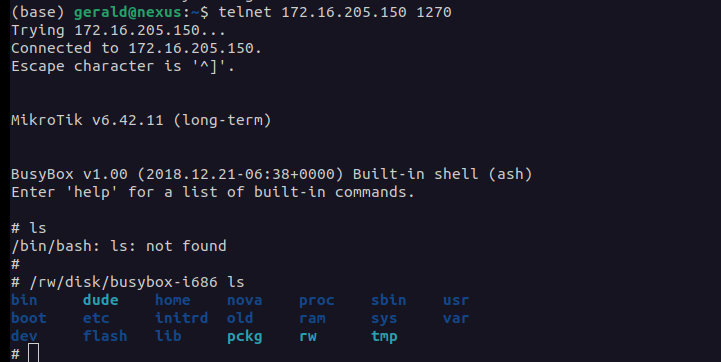
Thus to put simply, the template to run any bash commands is:
$ /rw/disk/busybox-i686 $COMMAND
3. Conclusion
I hope this guide is comprehensive enough for those who want to get started on doing vulnerability research on Mikrotik RouterOS systems. If you made it this far, I hope you learnt a lot and had fun along the way. Cheers and see you in the next post 😃.